
Custom Risk List Sharing
Follow these steps to share one of your custom risk checklists with teammates or other users in your organization.
How to view Suggested Revisions in Risk Review
Step 1: Go to the Risk Review workflow. | 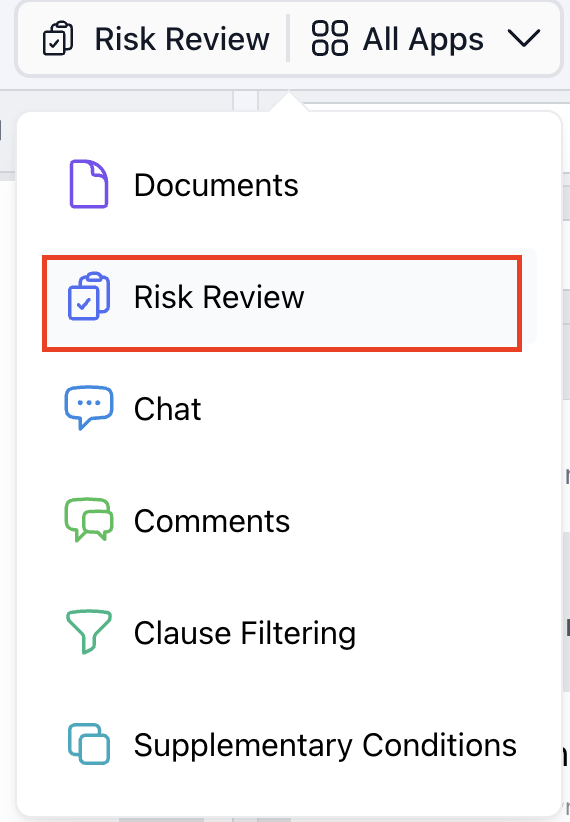 |
Step 2: Click on the custom risks. | 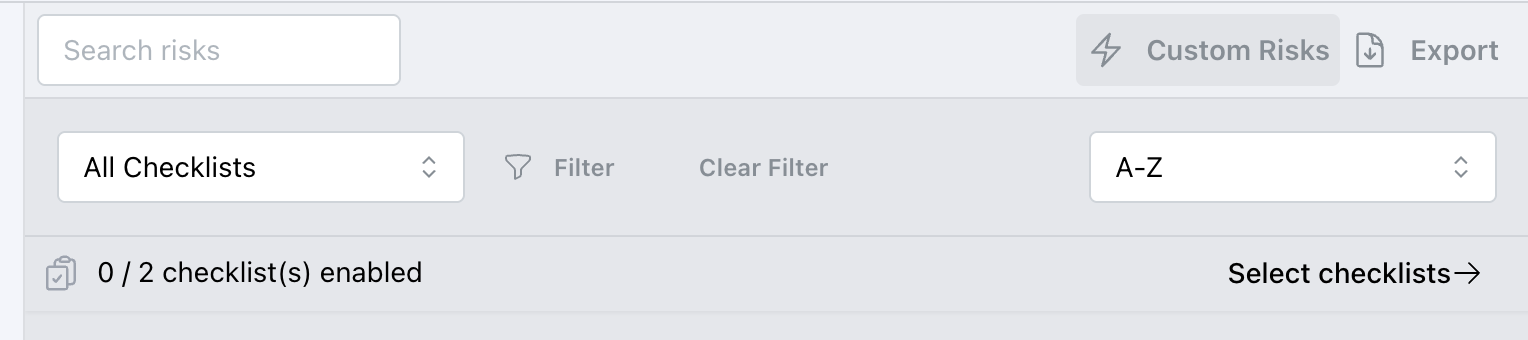 |
Step 3: Locate the checklist you want to share. Click the ellipsis (⋯) on the right-hand side of that checklist’s row. In the menu that appears, select Share. | 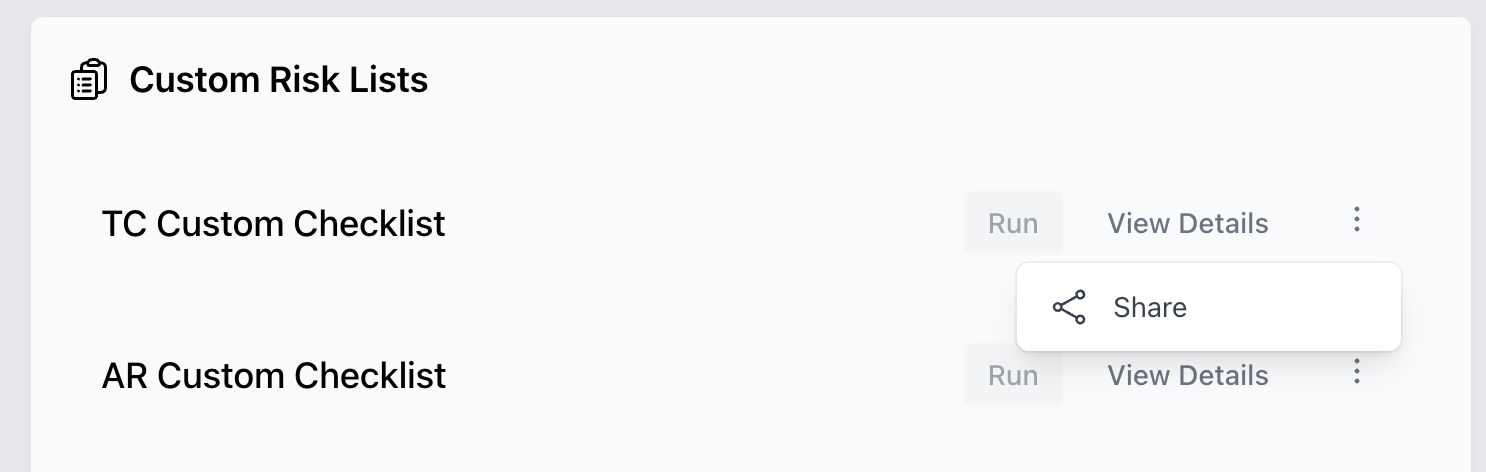 |
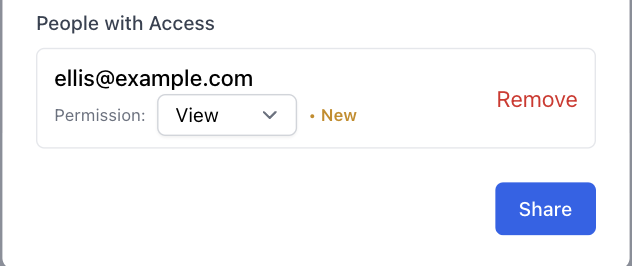
Step 4: In the Share Risk List dialog that opens, enter the email address of each person you want to share with. You can invite existing organization users or enter an external email to send an invitation. |
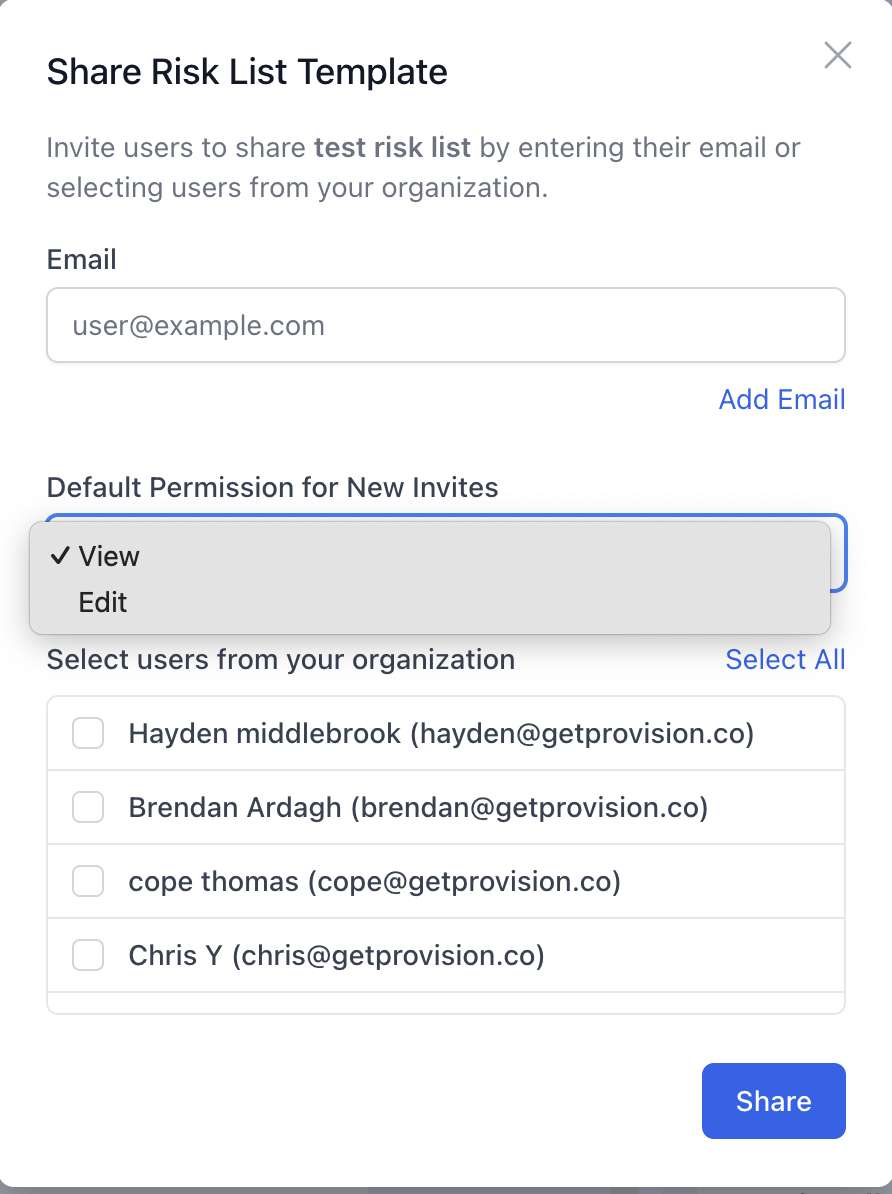 |
Step 5: For each email, choose one of: View – user can see and run the list, but cannot edit it. Edit – user can view, run, and make changes to the checklist. You must have Edit permission on the checklist yourself to grant Edit access to others.
|
 |
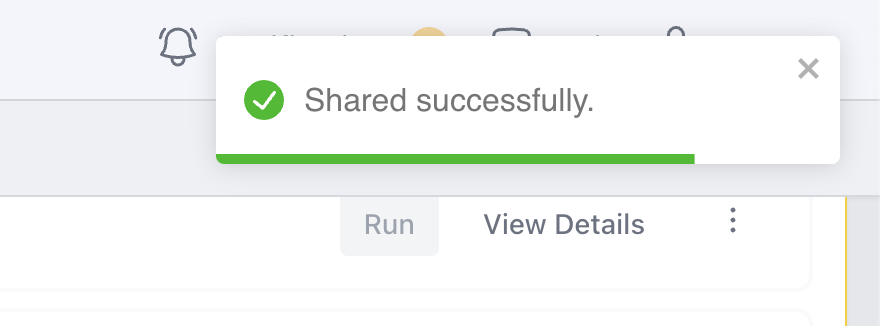
Step 6: Once you’ve added everyone and set their permissions, click Share at the bottom of the dialog. A confirmation banner will appear, and each person will receive an email notification (or invitation) letting them know they’ve been granted access.
|
 |