Tagging Clauses and Assigning Delieverables

Provision enables users to organize, track, and reconcile key information in large contracts or specifications. This guide walks through how to tag clauses, filter, export tagged content and  assign deliverables to teammates. 

Step 1: 

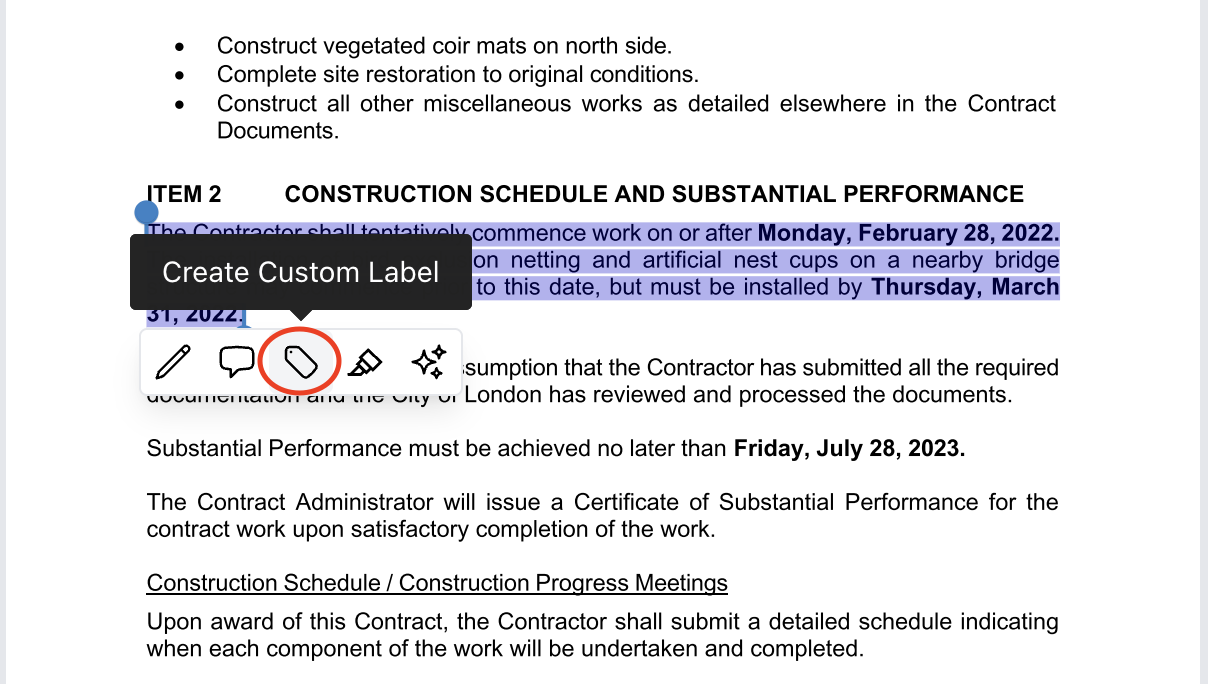
Highlight any relevant clause or section of text. 
In the tooltip that appears click Tag. 
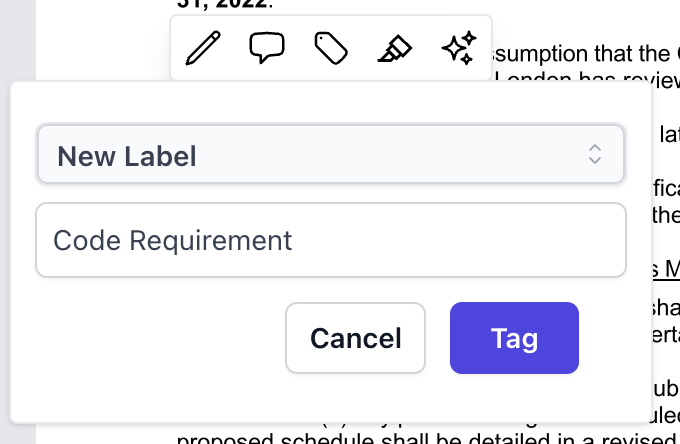
You can apply an existing label or create a new one (e.g., "Code Requirement"). 
Once tagged, a tag icon will appear next to the clause 


Step 2: 

Tagged clauses remain highlighted and can be filtered later. 
You can tag multiple clauses with the same or different labels across document. 


Step 3: 

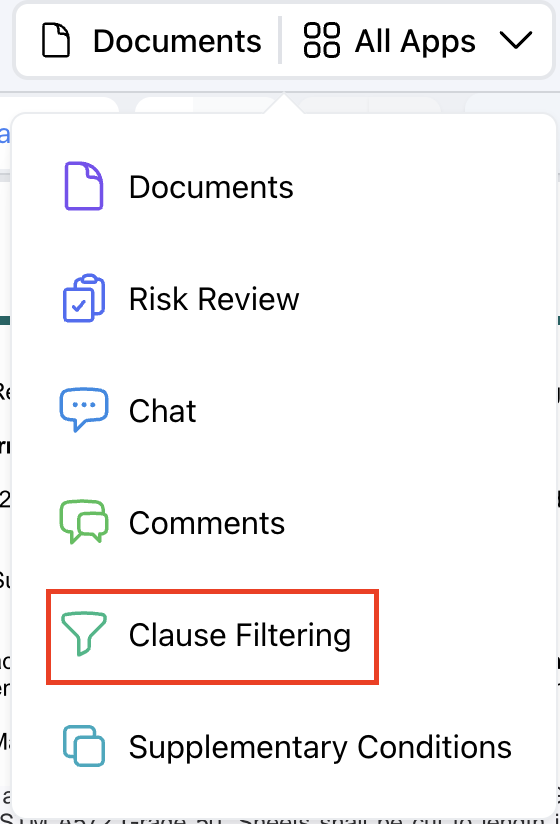
Navigate to Clause Filtering within All Apps.
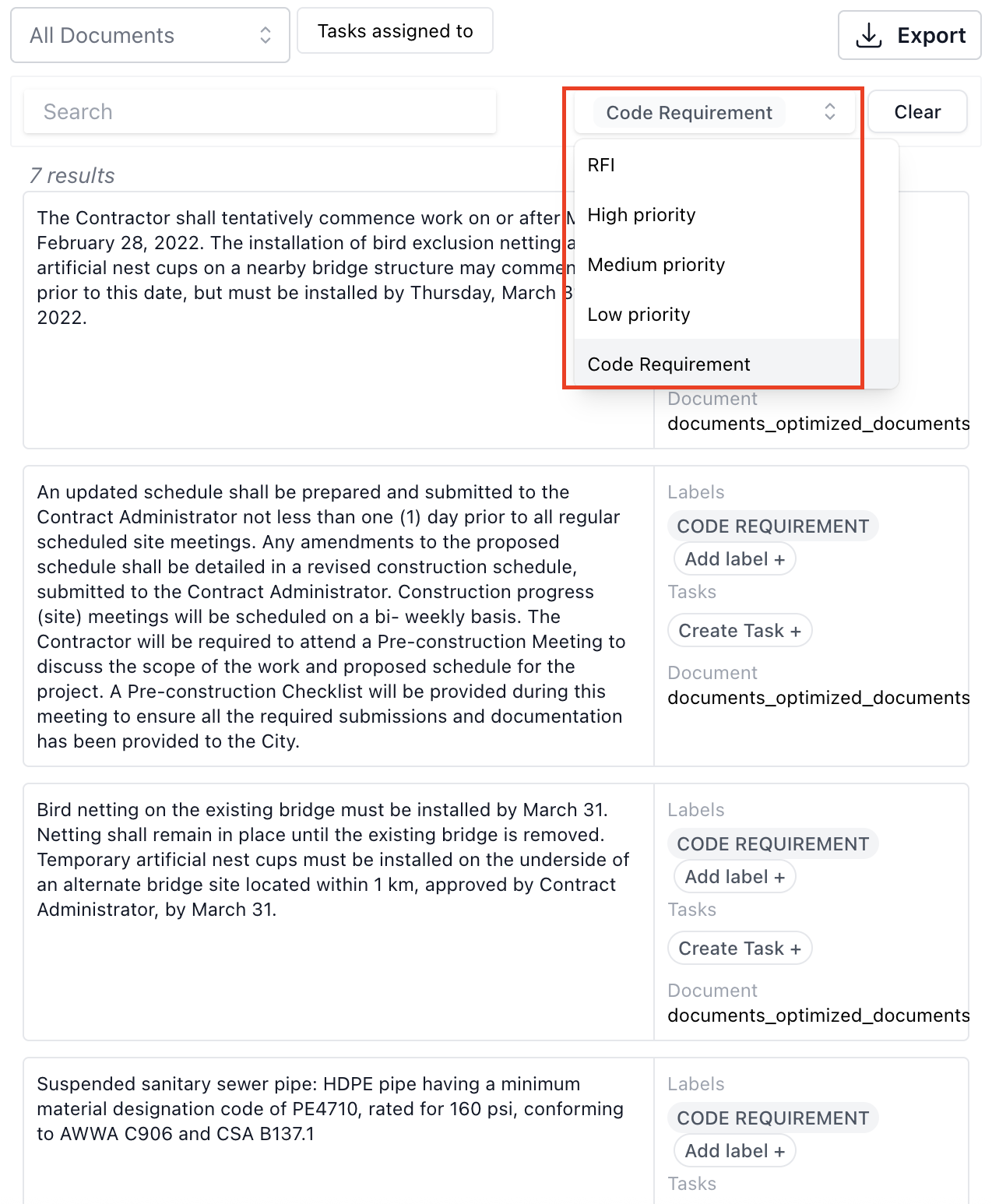
Select a tag (e.g., “Code Requirement”) to view all associated clauses.


Step 4: 

Click the Export button and choose Export to Excel.

The exported list includes:

  • Page number
  • Clause text
  • Labels applied
  • Document reference
  • This export serves as a clause-specific summary for review or action.


Step 5:

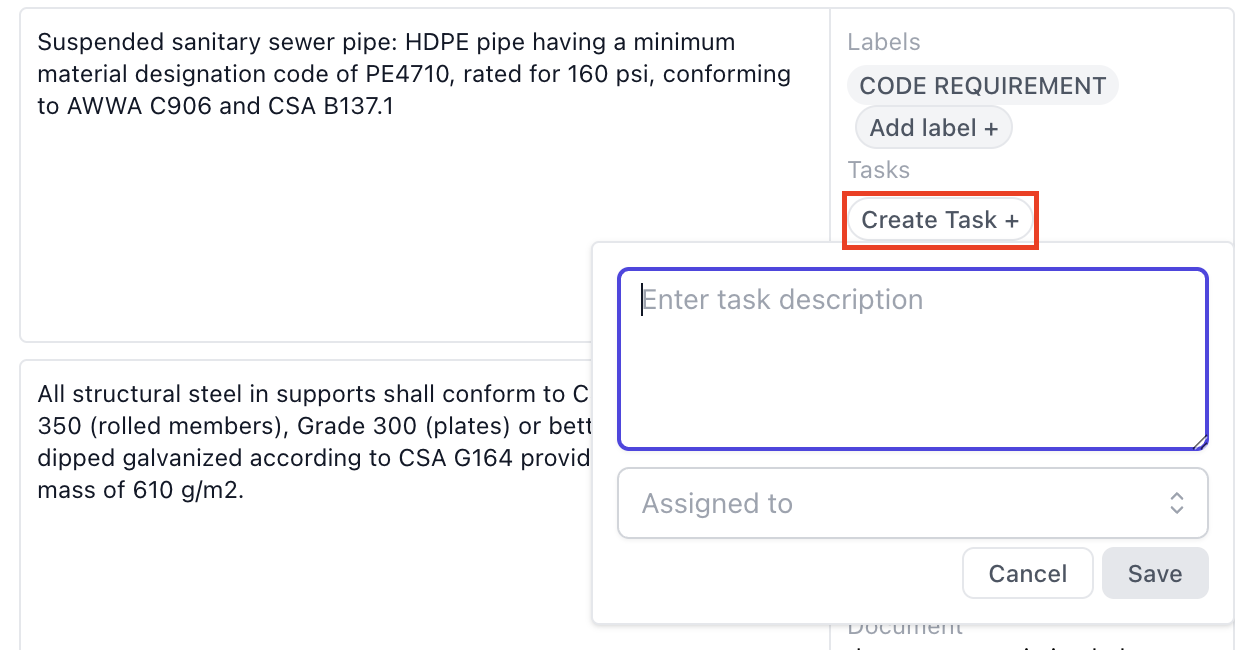
Assign the task to any collaborator who has access to the project.
Add a description or label as needed (e.g., “Submit design submittals”).
Assigned users receive in-app and email notifications.