Uploading a Revision

Provision’s versioning system allows you to upload new versions of the same document, compare changes, and carry over comments from the original. This ensures that no context is lost during project revisions.

Step 1:

Go to the original document in your project.
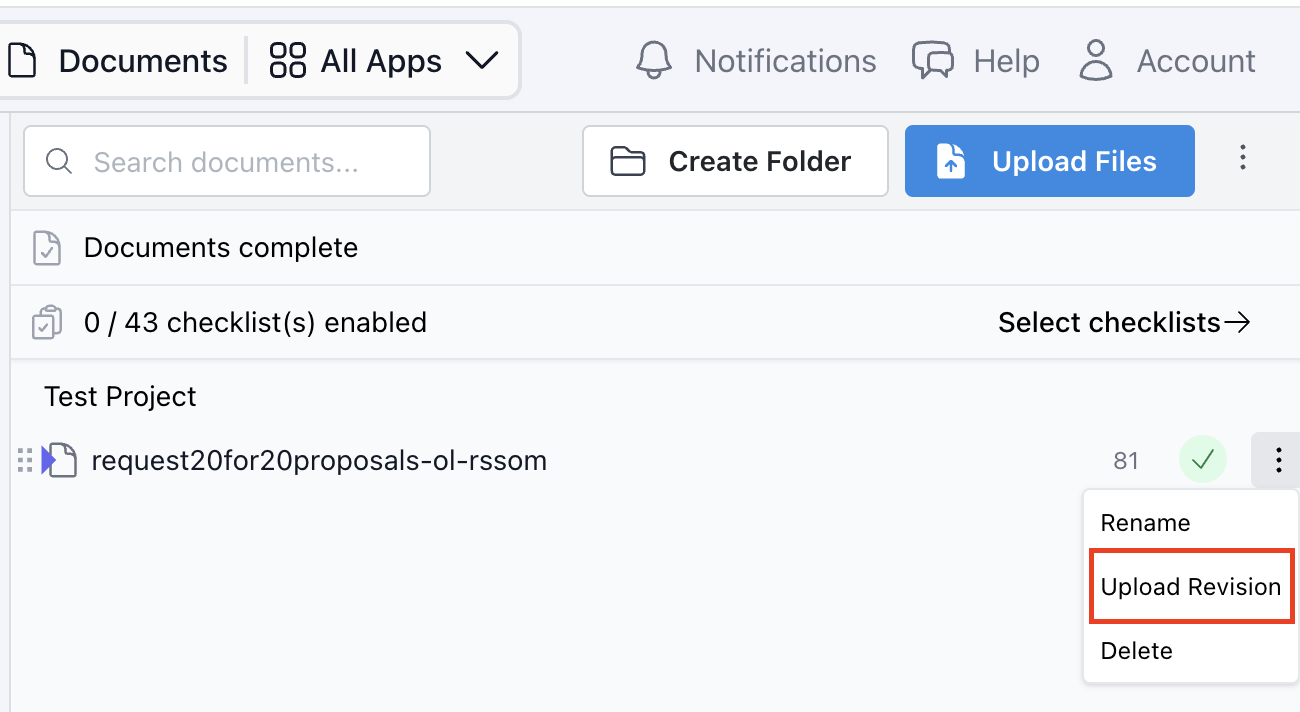
Click the three dots (⋮) next to it and select “Upload Revision.”
Choose the updated file from your device. This becomes Version 2.


Step 2: 

Provision automatically compares V1 and V2.
You’ll receive an email notification once the new version is processed and reconciled.


Step 3: 

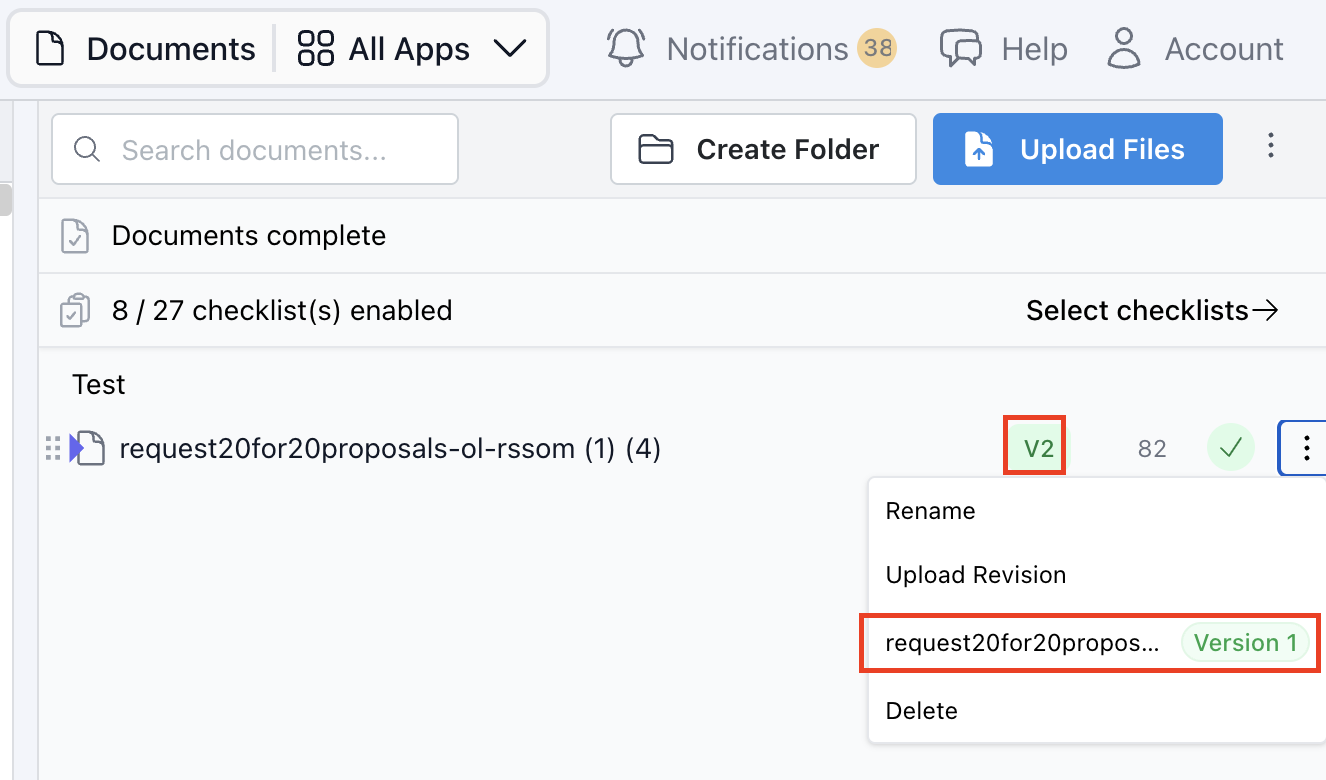
Provision always displays the latest version (V2) by default.
No need to manually switch — V2 becomes the active document.
To view an earlier version, click the version toggle or dropdown and select V1.
Useful for historical comparison or tracking original language.