Provision’s Risk Review feature highlights clauses and conditions that may pose legal, operational, or financial risk. You can filter risks by workflow type, document, and even build custom checklists tailored to your company’s standards.
Step 1:
Wait for Risk Review Completion: After document upload, Provision will analyze your files. Once done, you'll receive an email notification and see a banner: “Project analysis complete. X risks identified.”
Step 2:
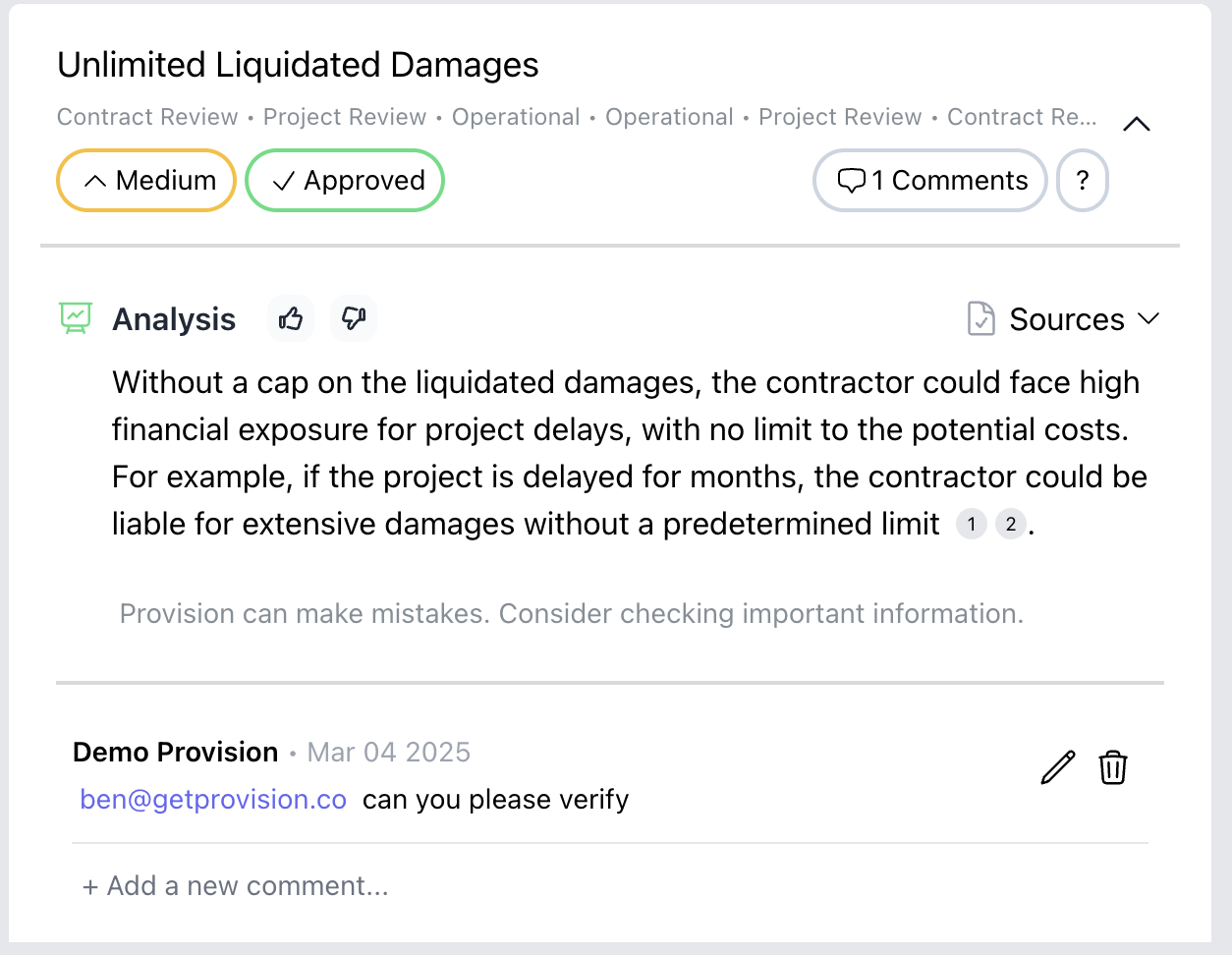
Risks are grouped by category (e.g., Markups, Limit of Liability, Termination, etc.).
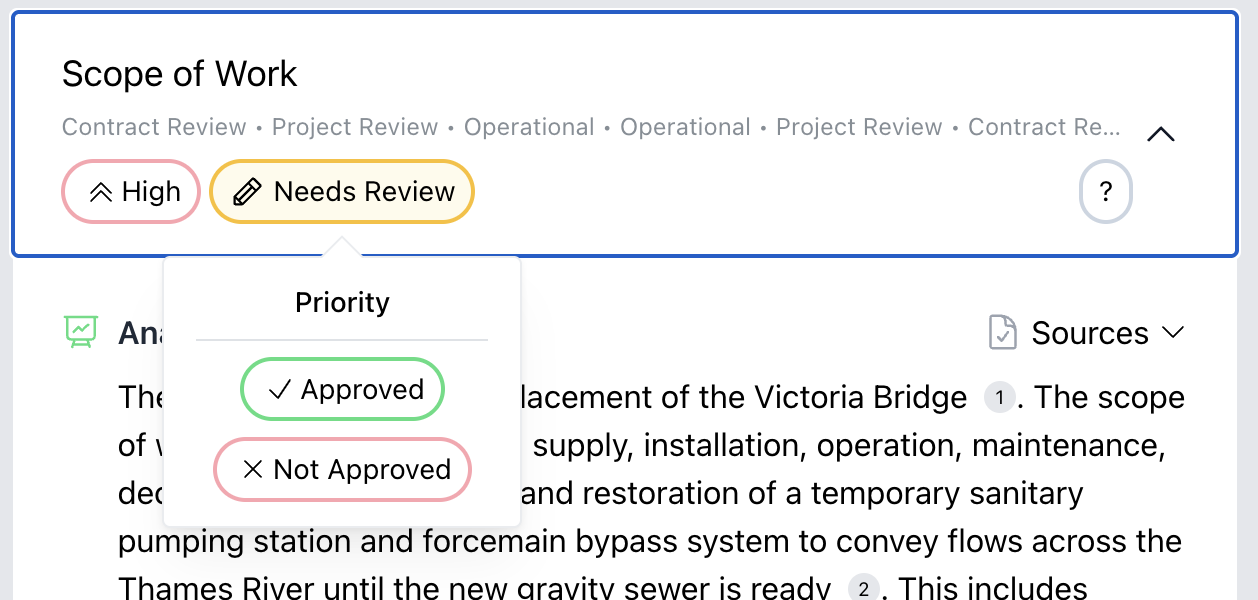
Click to expand a risk and view:
Description (hover over the question mark to view)
Severity ranking: High, Medium, Low
Status: Reviewed, Needs Review, or Not Reviewed
Source links to relevant contract language
Step 3:
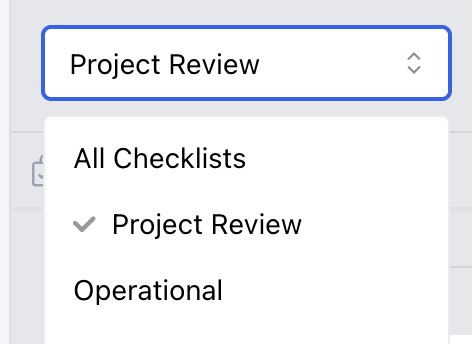
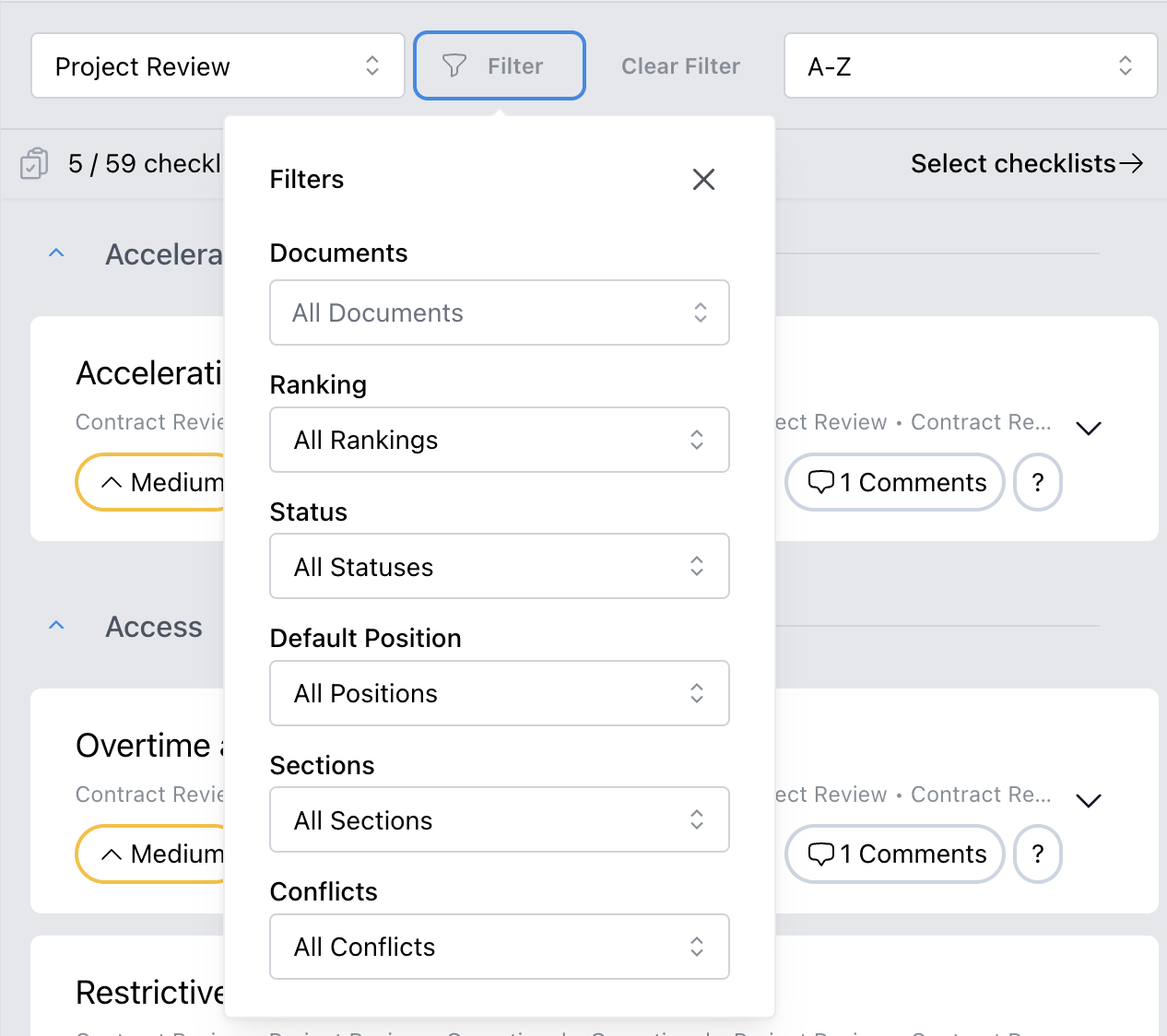
Filter by Checklist, Use the top filter bar to sort risks by:
Operational
Contract Review
Project Review
Or “Custom Risk List Name”
Step 4:
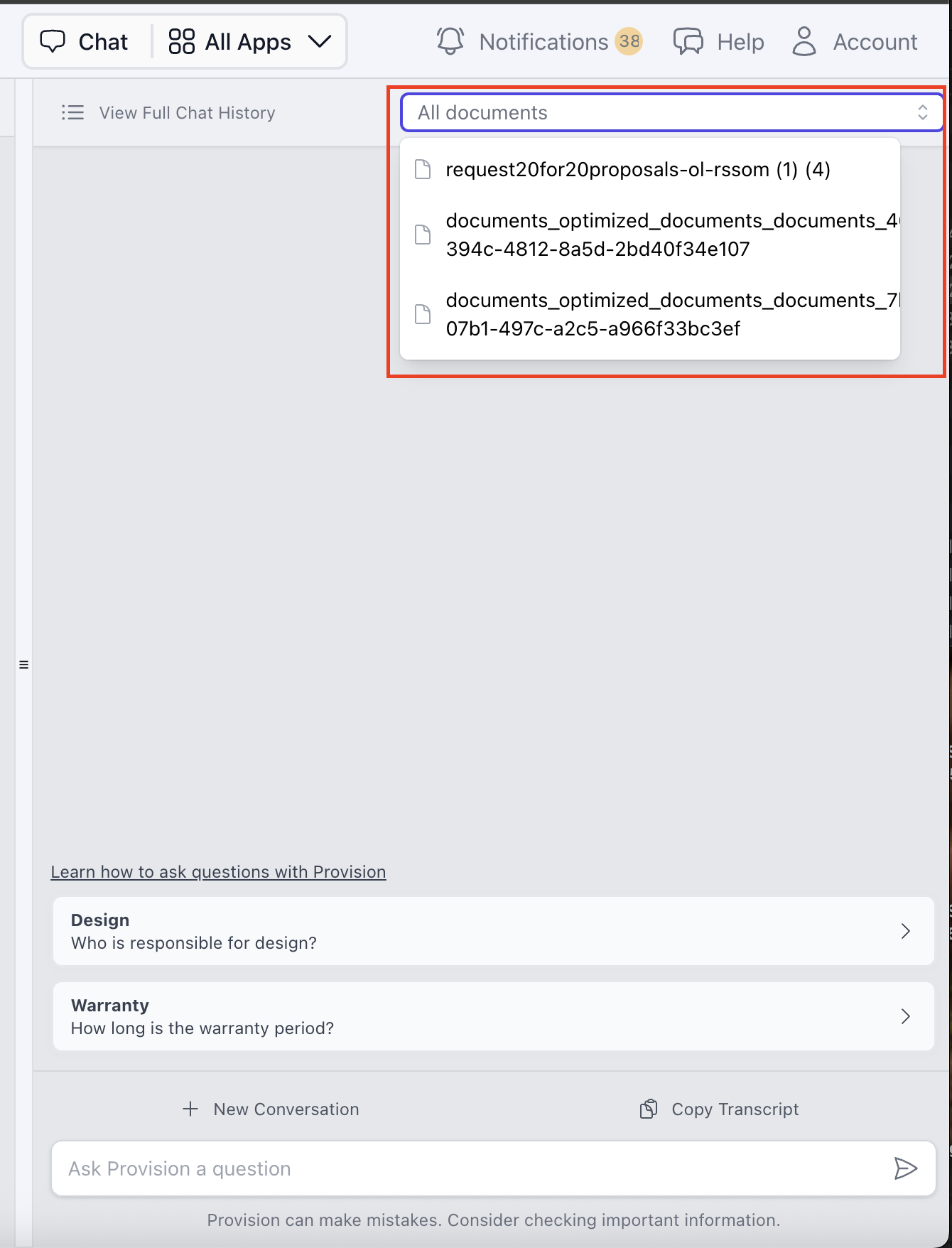
View Risks by Document
If your project contains multiple documents it will process all information when generating a risk file. You can filter for a spefic document OR
If you want to ask a question of a specific document, go to chat and you can select the specific documents to ask questions of. Alternatively you can create a new project to have risk run against a new set of documents.
Example: Chat with “Front End Specifications” document only.
Step 5:
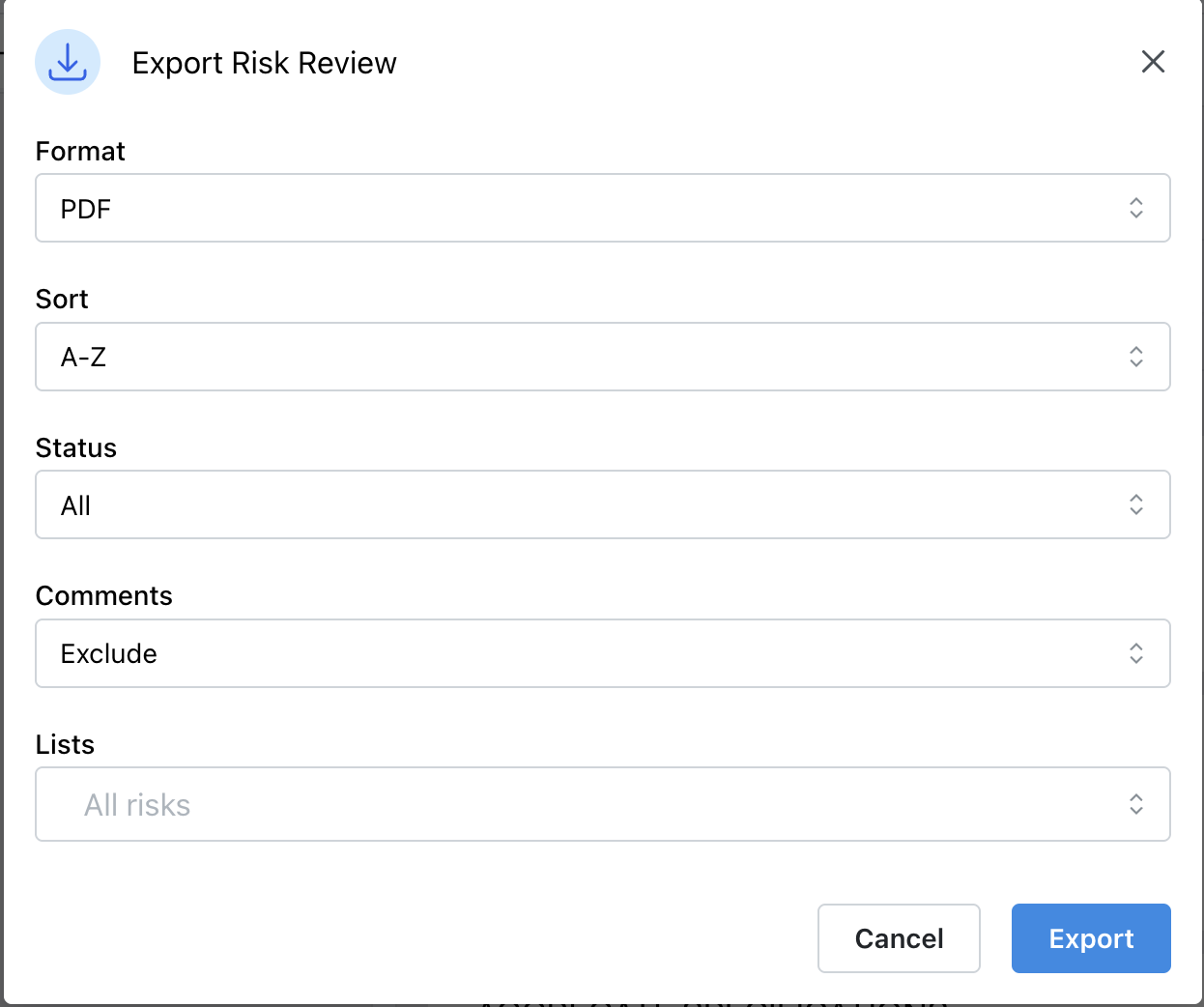
Export Risk Reports
Choose Export to Excel, Export to PDF or Export to Word.
PDF, Excel or Word Includes:
Project name
Preparer’s name
Risks, status (Reviewed, Not Reviewed, etc.) and comments (exclude, include)
Pro Tips
Mark risks as “Approved”or“Not Approved” as you review them — this helps escalate the priority risks. Also make comments and tag others as needed.
Filter down to what matters most by customizing your workflows and checklists.
Use risk exports for internal reporting or client handovers.