
Supplementary Conditions
Provision can automatically process supplementary conditions documents, provided that there is a template contract and supplementary conditions in a proejct.
Upload Documents
1. Upload a contract
2. Upload a supplementary conditions document
3. Once both a supplementary conditions documents and a contract have been uploaded to Provision and fully processed, they may be marked as a template document or supplementary conditions document.

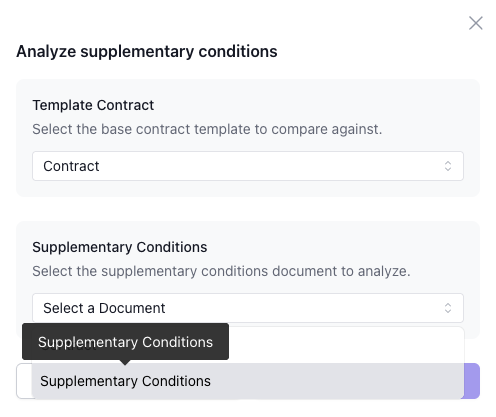
Once documents have been successfully labelled as supplementary conditions and a template document, the supplementary conditions process will automatically begin.
Review Supplementary Conditions
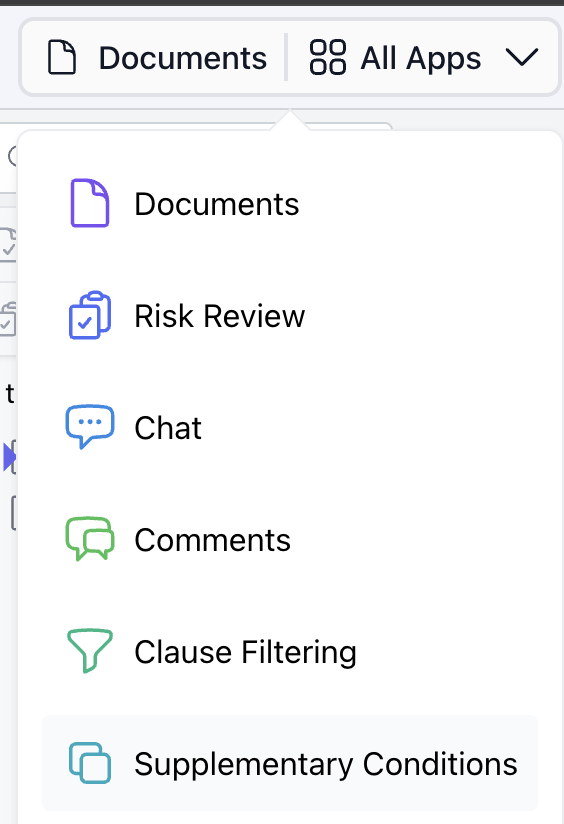
In the project that you have uploaded supplementary conditions to, select All Apps and select Supplementary Conditions.
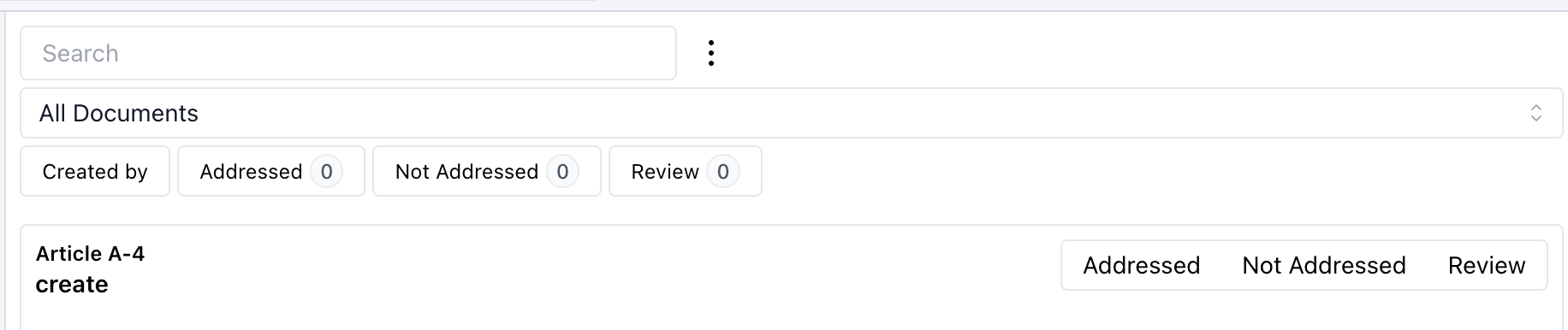
In this tab you can review the results of the supplementary conditions automation, add comments and mark the changes as Addressed, Not Addressed and flag them for Review.