
Organizing and Managing Documents
This guide will walk you through how to rename documents, create folders, and search your project documents to keep everything organized and easy to find.
Rename Documents
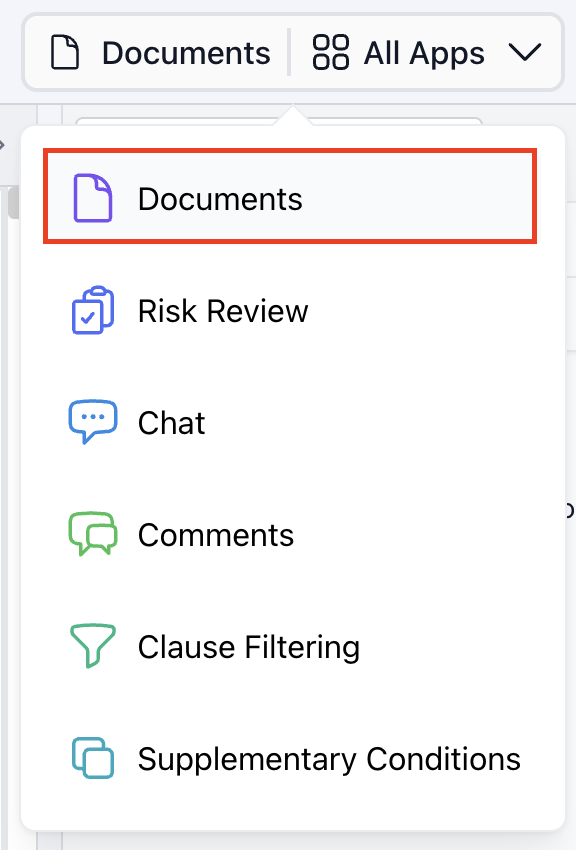
Step 1: Navigate to the Document tab in All Apps. |
 |
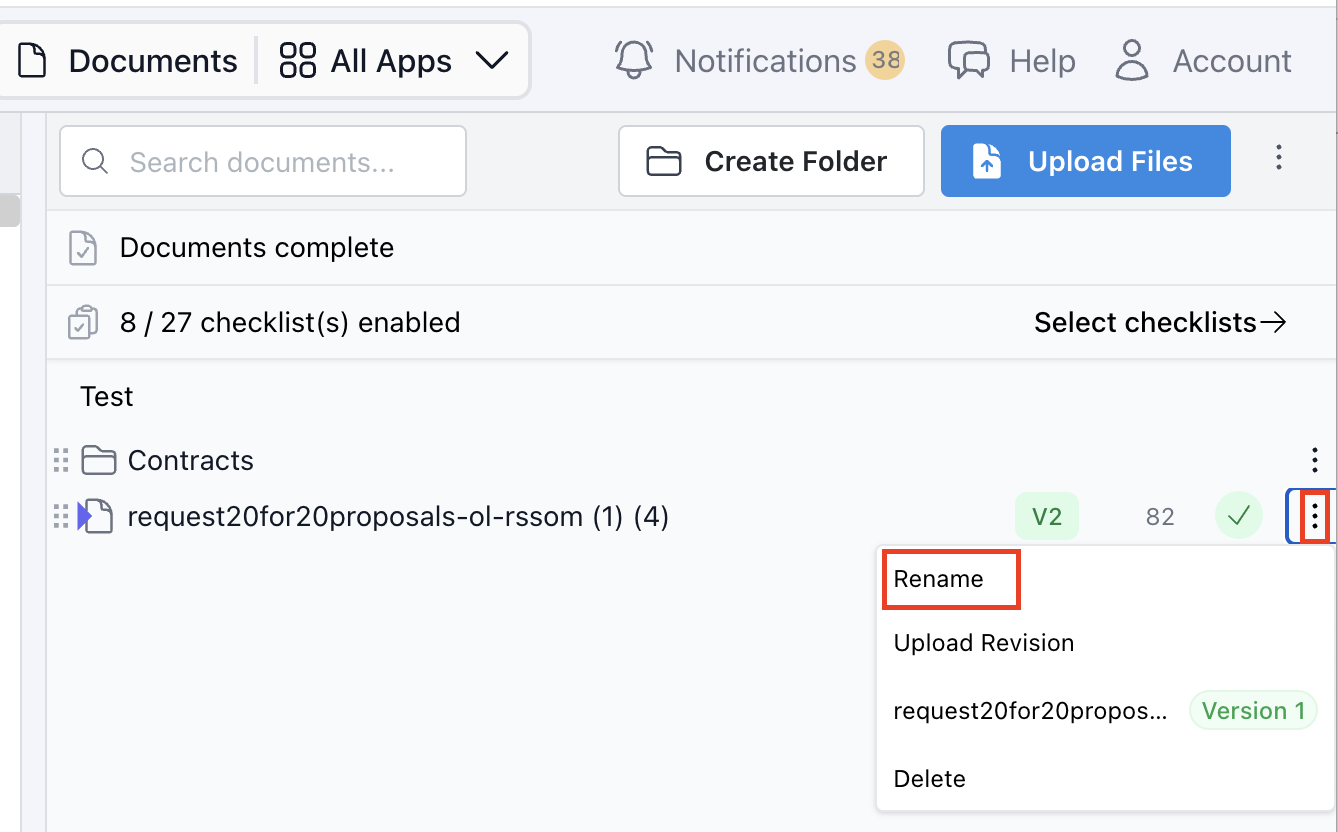
Step 2: Click the ellipsis (⋮) next to the , select Rename, enter the new name, and click Save. |
 |
Create Folders within Your Project
Step 1: Navigate to the Document tab in All Apps. |
|
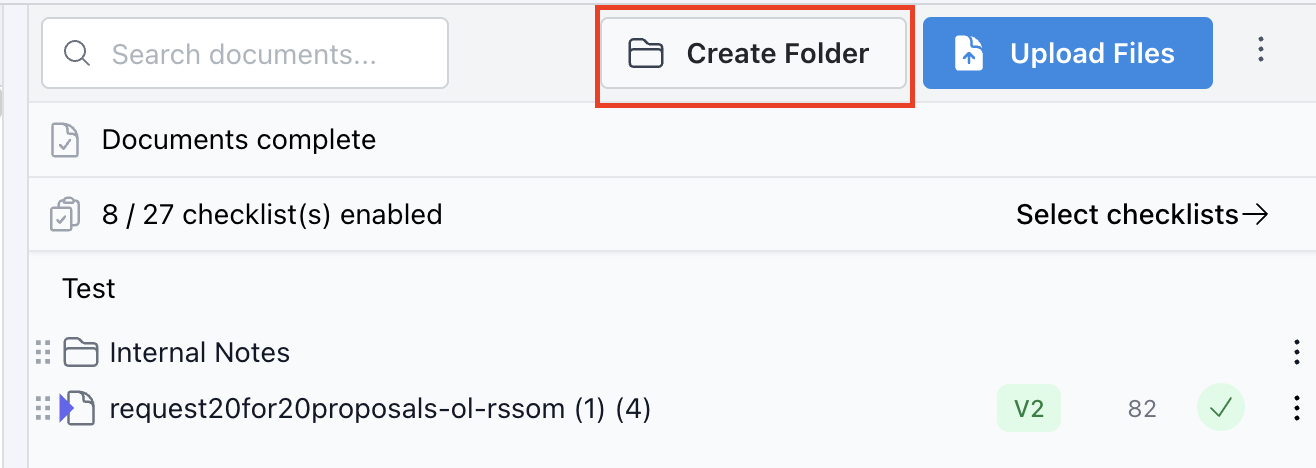
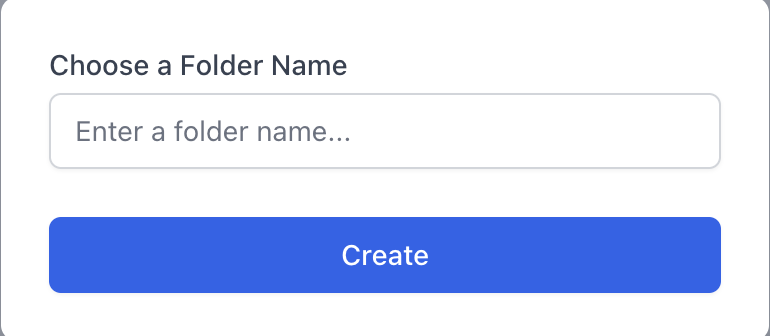
Step 2: In the Document tab click Create Folder and enter a folder name (e.g. Contracts, Specifications, Schedules). |
  |
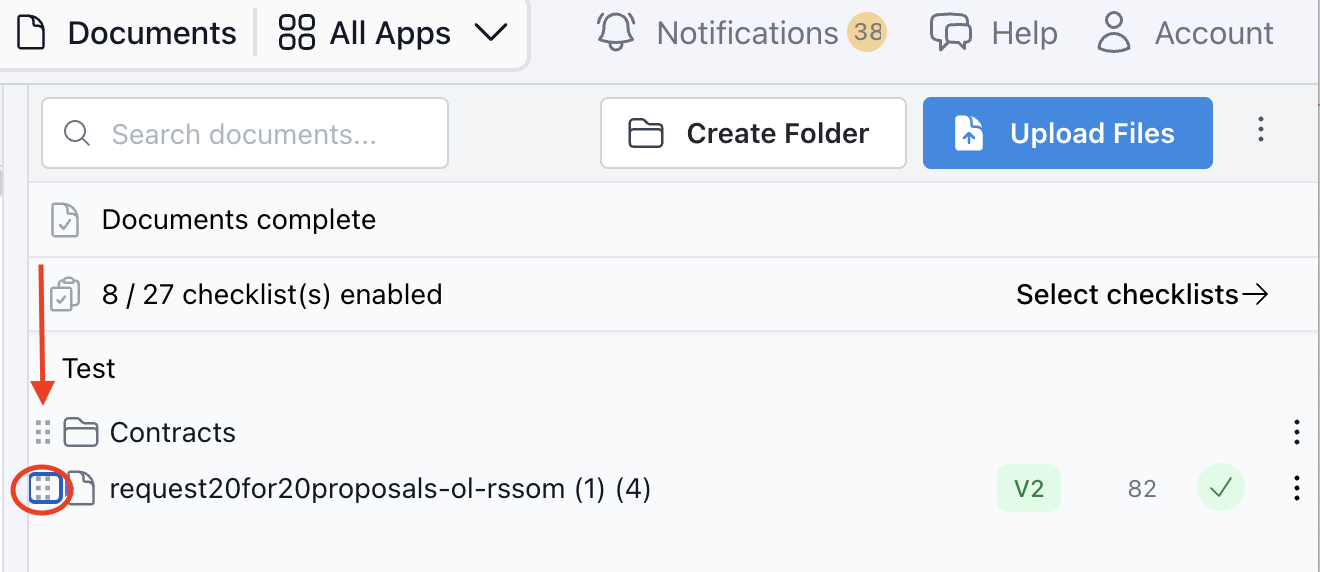
Step 3: To reorganize, click the four-dot grid icon on the left side of the document and drag it to the desired folder |
 |
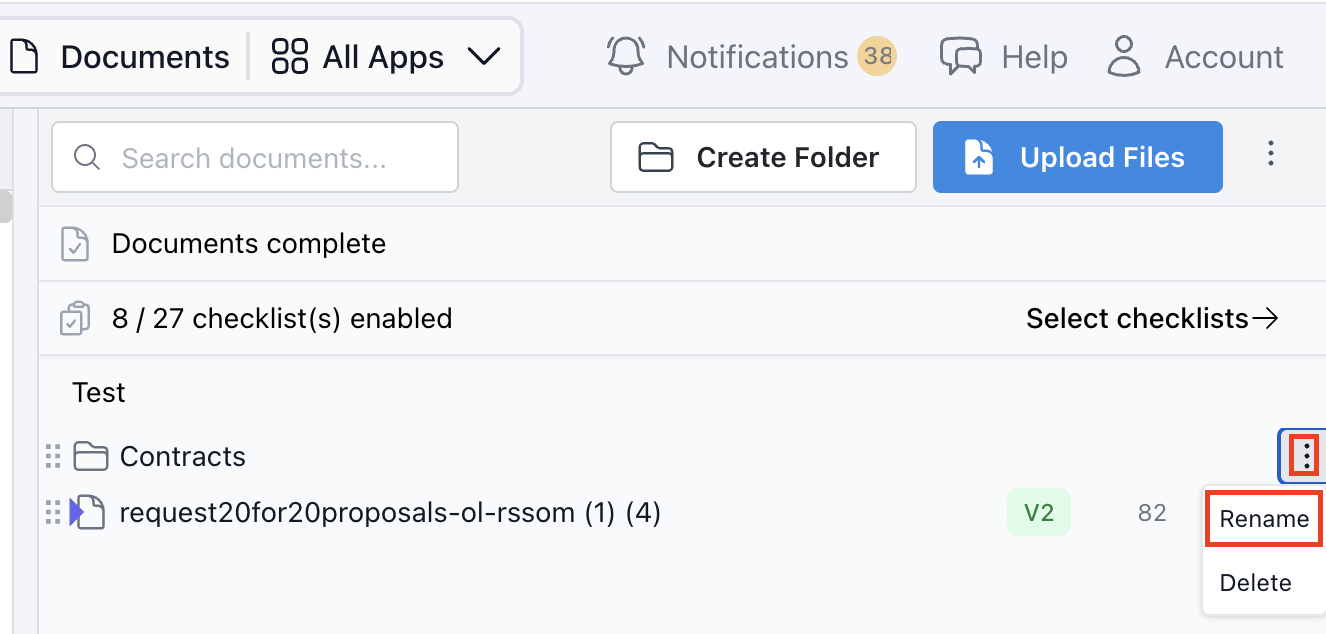
Step 4: To rename the folders click the ellipsis (⋮) next to the project folder name , select Rename, enter the new name, and click Save. |
 |