
Risk Review Suggested Revisions
When running risk review where default position is not met, Provision now also suggests revisions to the exact parts of contracts responsible for violating the default position. The user can then choose to accept or reject these suggested revisions. This article refers to viewing, accepting and rejecting Provisions suggested revisions.
How to view Suggested Revisions in Risk Review
Step 1: Go to the Risk Review workflow. | 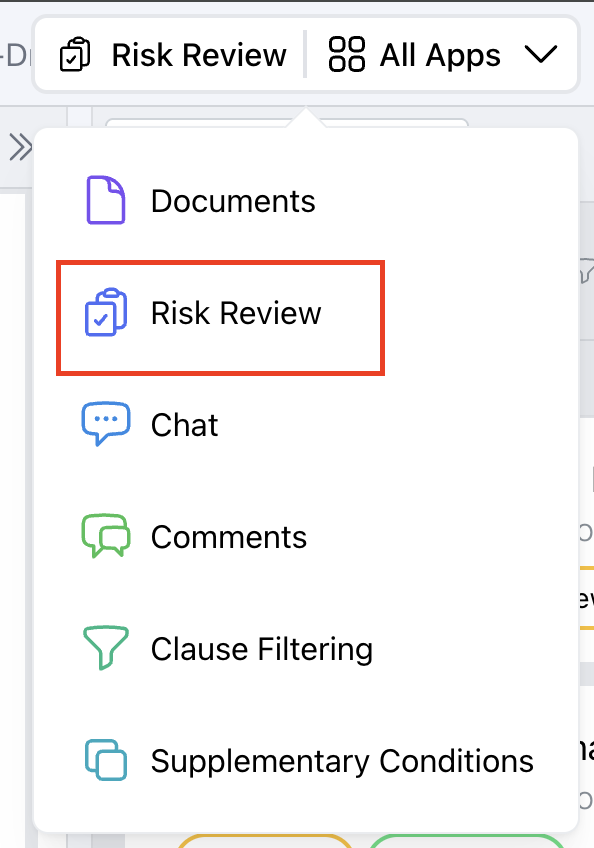 |
Step 2: If a risk review has a default position not met it will display a "Default Position not met" badge. |  |
Step 3: Upon expanding, you can view both the risk review and the suggested revision(s) | 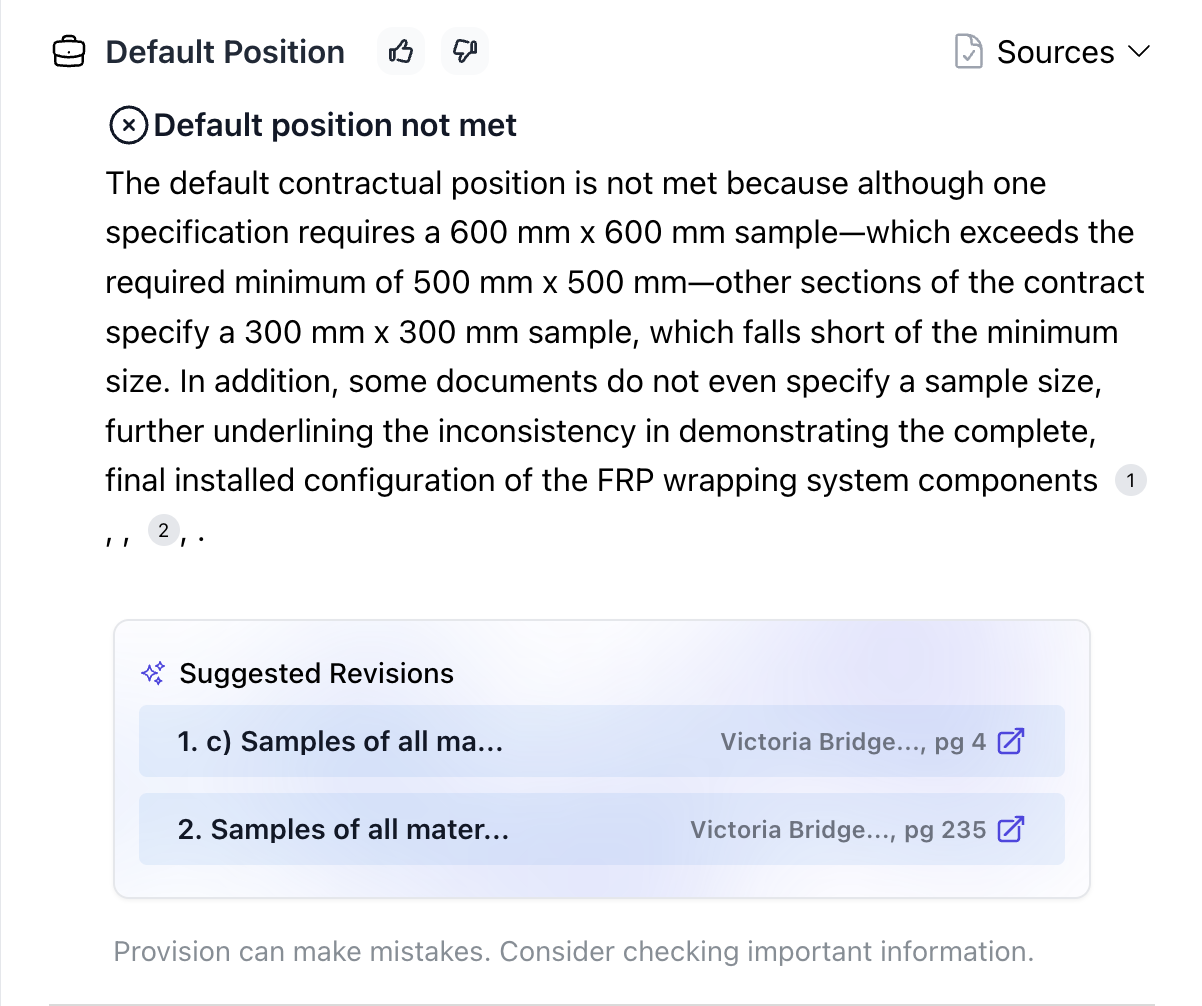 |
How to accept Suggested Revisions in Risk Review
Step 1: Expand a risk review card to view the suggested revision(s) | |
Step 2: Click one of the suggested revisions, this will redirect you to exactly the document and page this revision is to be made on. Click "Save Changes" to accept this revision |
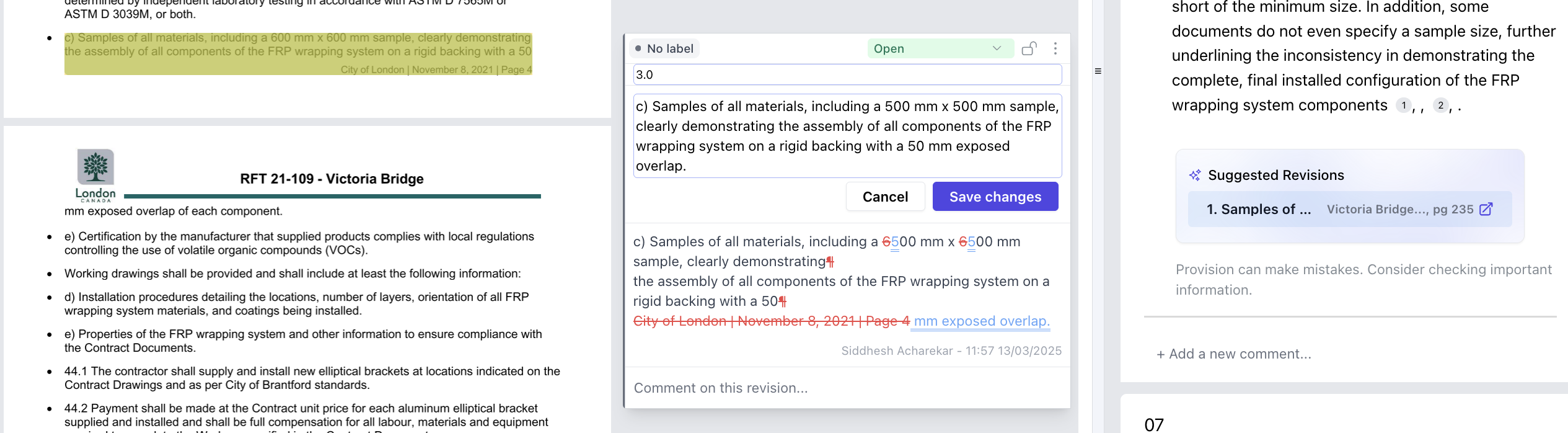 |
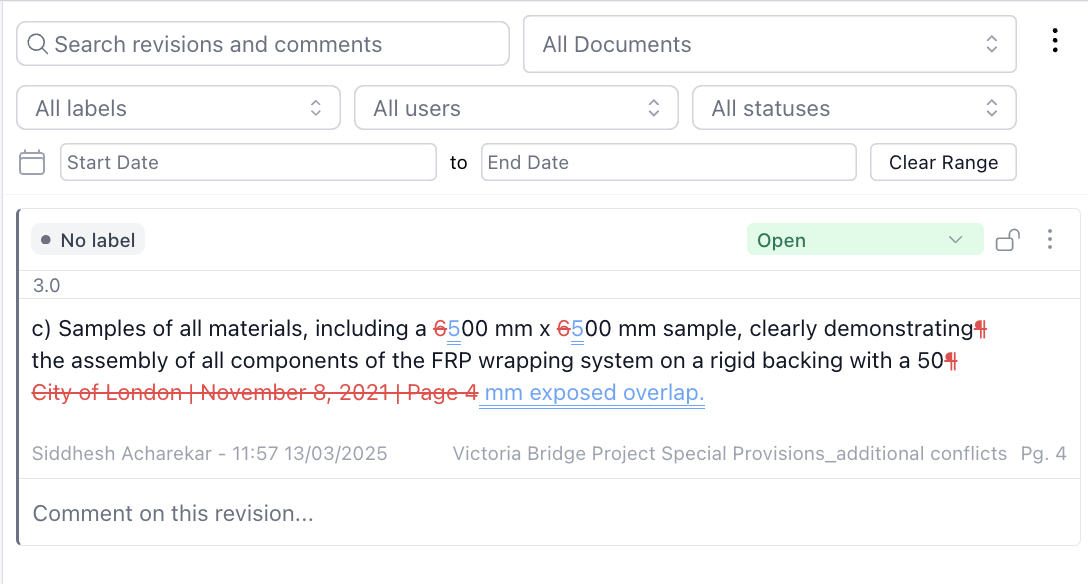
Step 3: This revision is accepted and it can be used in the Comments and Revision workflow as any other Revision. |
 |
How to reject Suggested Revisions in Risk Review
Step 1: Expand a risk review card to view the suggested revision(s) | |
Step 2: Click one of the suggested revisions, this will redirect you to exactly the document and page this revision is to be made on. Click "Cancel" to reject this revision |
|
Step 3: The revision will not be created, and remain a suggested revision. It will also not show up in the Comments and Revision workflow. |
  |